Service Areas
A service area is a territory on the map, for example "Inner North". You attach drivers to service areas. When a new package comes in, Hikyaku gives it first to a driver whose service area contains the delivery address.
Service areas help you to:
- Keep each driver in the part of the city that they know.
- Find addresses that no driver covers.
- Grow your operation with clear boundaries between teams.
Who can use this page: all team members can see service areas. To add, change or delete a service area, you must have service_areas.edit. Refer to Access Control.
Open Service Areas
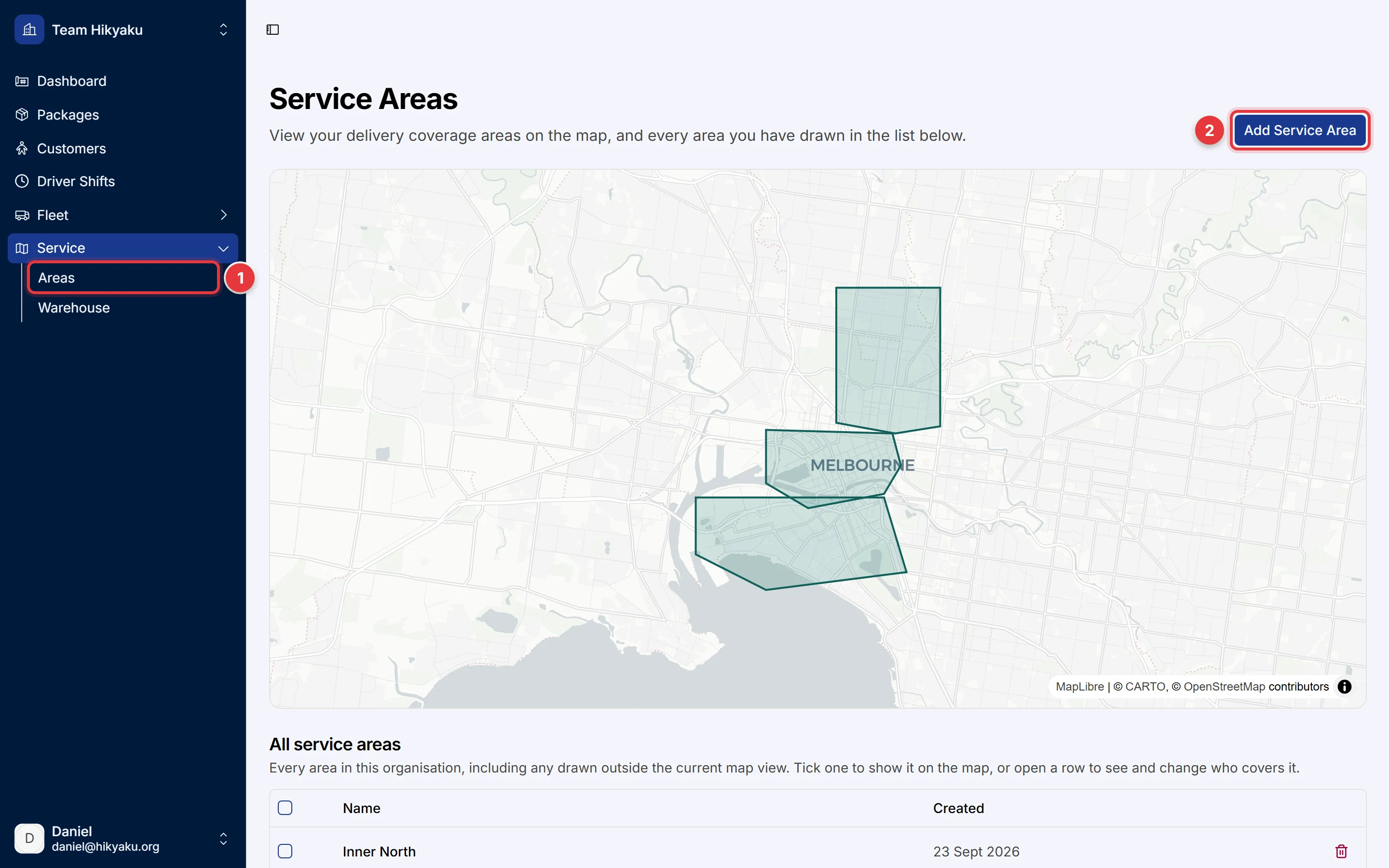
- In the sidebar, click Service, then click Areas.
- Click Add Service Area to make a new area.
The map shows all your service areas. Below the map, All service areas lists each area, also the areas outside the current map view. Select the checkbox of an area to show it on the map. Click the name of an area to open it.
Add a service area
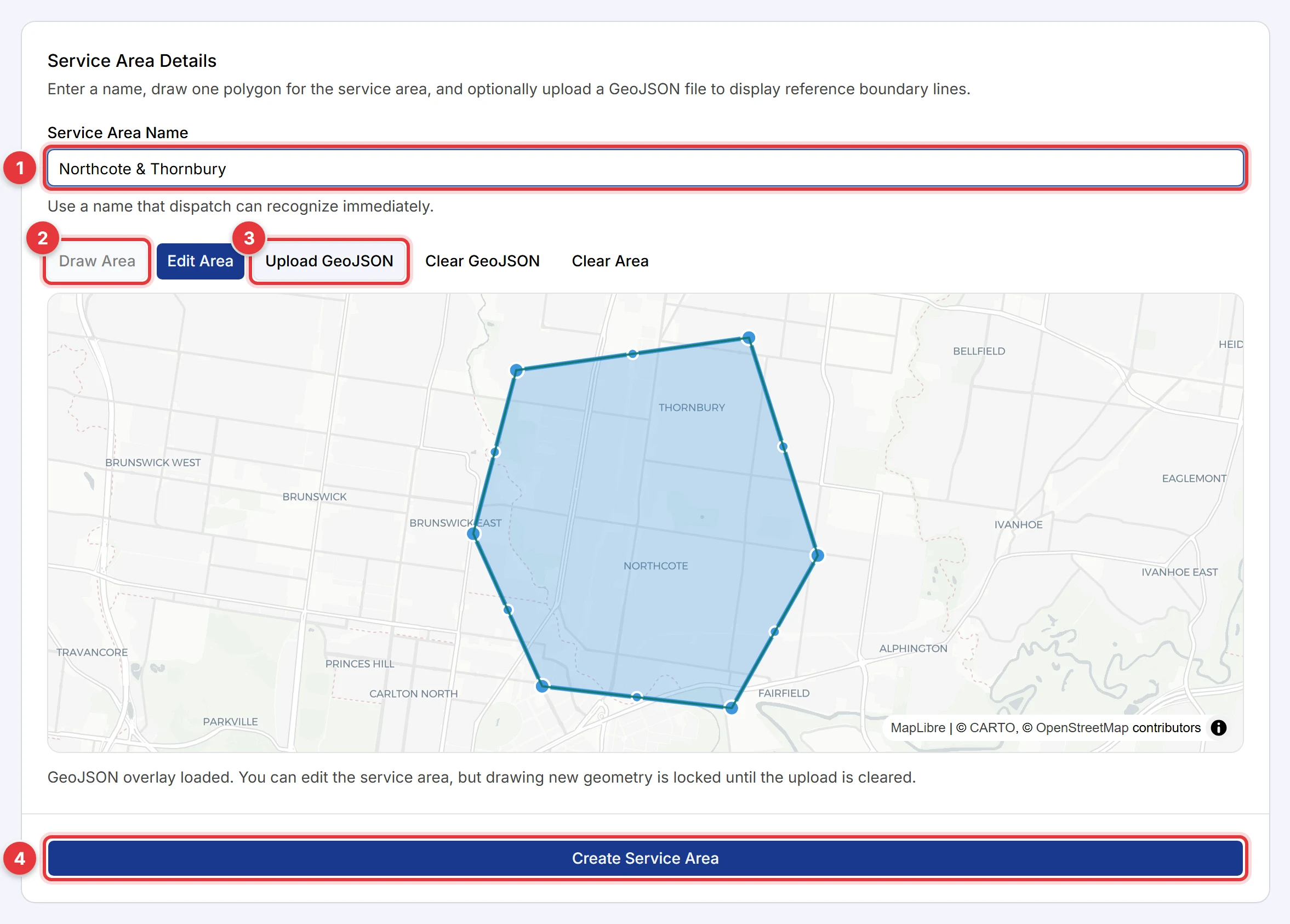
- In Service Area Name, type a name that dispatchers know immediately.
- To draw the boundary, click Draw Area. Click the map at each corner of the area. Click the first point again to close the shape.
- To use a boundary file, click Upload GeoJSON and select a
.geojsonfile. The map moves to the shape in the file. - Make sure that the shape is correct, then click Create Service Area.
You can draw an area, or you can upload one. You cannot do both at the same time.
Change the shape before you save
| Button | Action |
|---|---|
| Edit Area | Move the corners of the shape. Drag a small point on an edge to add a corner. |
| Clear Area | Remove the shape. Then you can draw it again. |
| Clear GeoJSON | Remove the uploaded file. Then you can draw a new shape. |
If the GeoJSON file has more than one shape, Hikyaku uses the largest shape as the service area.
GeoJSON is a standard file format for map shapes. Many government and council websites supply suburb and postcode boundaries as GeoJSON. Use these files when your territories follow official boundaries.
Attach drivers to a service area
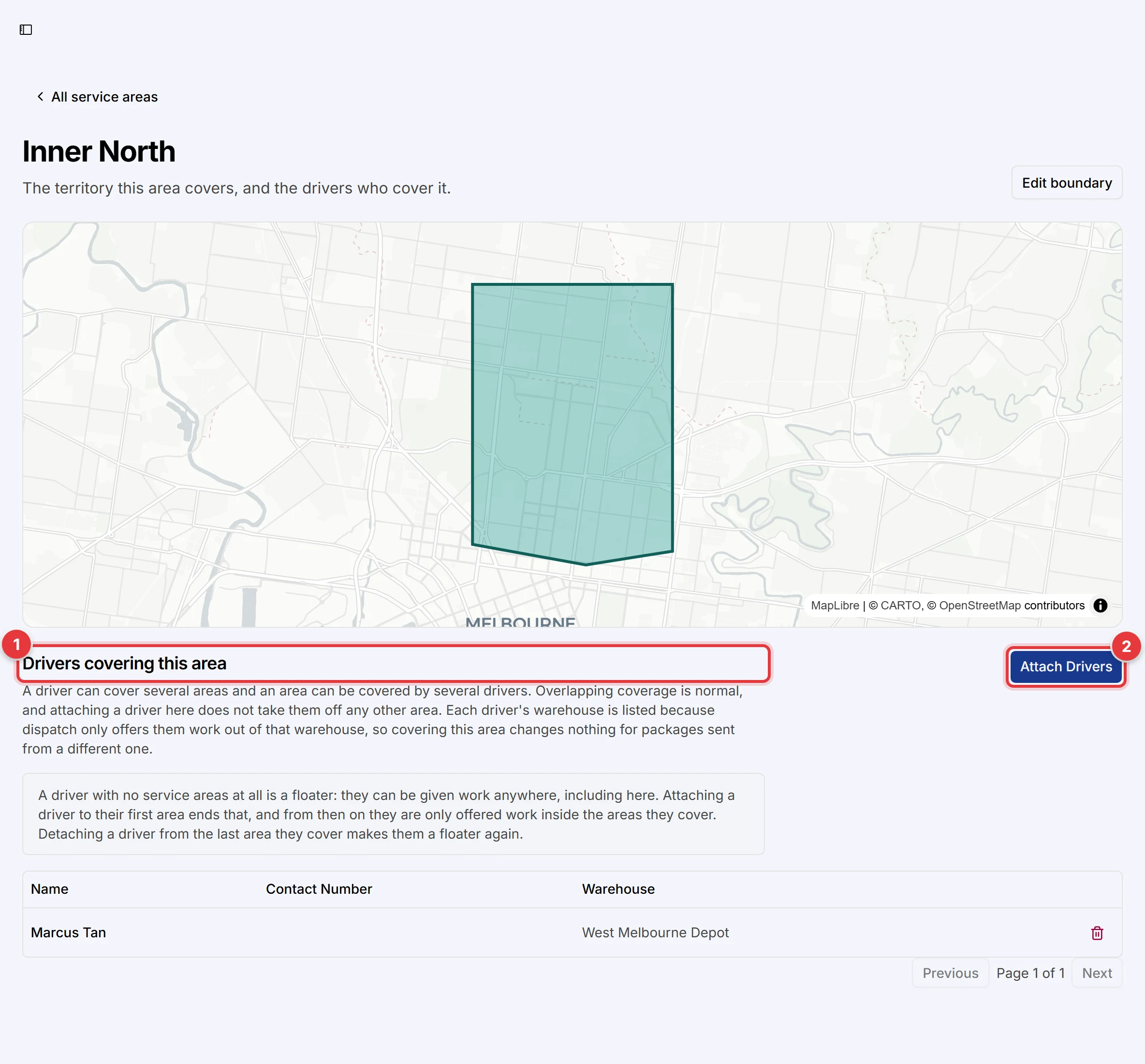
- In All service areas, click the name of the area.
- In Drivers covering this area, click Attach Drivers.
- Select one or more drivers, then confirm.
To remove a driver from the area, click the remove icon next to the driver.
You can also attach areas from the driver page. Refer to Team Members and Drivers.
How service areas control assignment
A driver covers an address when one of the driver's service areas contains the address.
A driver with no service areas is a floater. Hikyaku can give a floater work anywhere at the warehouse. When you attach the first area to a floater, the driver is no longer a floater.
When a package comes in, Hikyaku tries these steps in this sequence:
- Put the package on a shift of a driver who covers the address.
- Start a new shift for a free driver who covers the address.
- Put the package on a shift of a driver who does not cover the address.
- Start a new shift for any free driver.
- Move a less urgent package off a shift to make space. If this is not possible, keep the package Pending in a queue.
Hikyaku records the result on each package as the Coverage value. Refer to Packages.
Coverage-based assignment is an option of the Hikyaku API (SERVICE_AREA_MATCHING). When the option is off, Hikyaku ignores service areas and gives each package to the lowest-cost shift.
Check which drivers cover an address
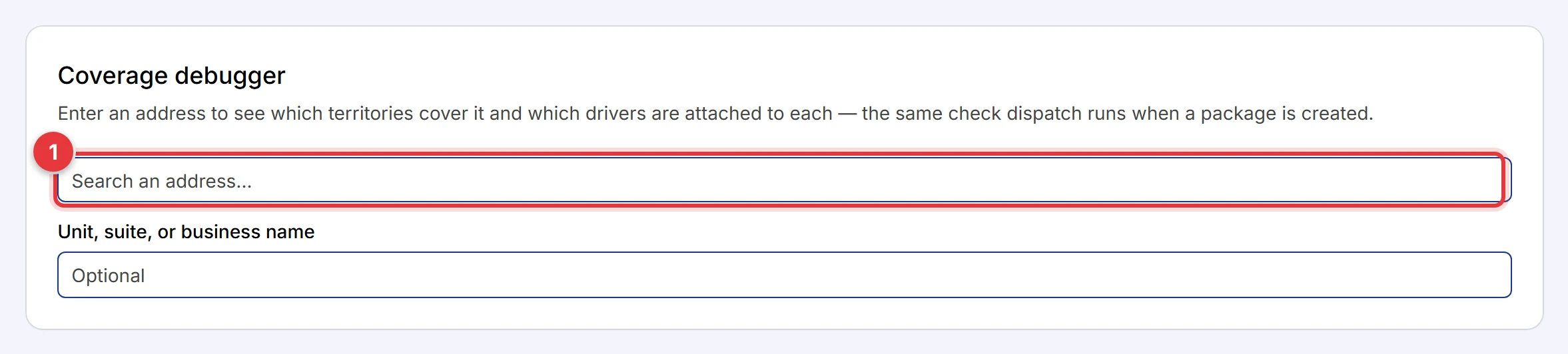
The Coverage debugger is below the list of service areas. It runs the same check that Hikyaku runs when a package comes in.
- In the address field, type an address and select it from the list.
- Read the result:
- Each area that contains the address, with the number of drivers attached.
- The names of the drivers in each area.
- If no area contains the address, a message tells you that Hikyaku gives the package to any free driver at the warehouse.
The result shows the map as it is now. To see why an older package went to its driver, open the package page.
If an area contains the address but no driver is attached to the area, the result is the same as no coverage. Attach a driver to the area.
Delete a service area
In All service areas, click the delete icon at the end of the row, then confirm. Hikyaku removes the area from the map and does not use it for assignment again. Packages that Hikyaku already assigned stay on their shifts.
A driver who covered only the deleted area does not become a floater. This driver covers no address, and gets packages only through the fallback steps 3 and 4. Attach a different area to the driver, or remove the driver from the deleted area before you delete it.