Driver App Overview
The Hikyaku driver app is an Android app. Drivers use it to load the van, drive the route and record each delivery. Dispatchers and owner-drivers can also use it to add packages, vehicles and warehouses from the road.
The app uses the same data as the web dashboard. A change in the app shows on the dashboard immediately. A change on the dashboard shows in the app.
Platform
The app is available for Android only.
The app at a glance
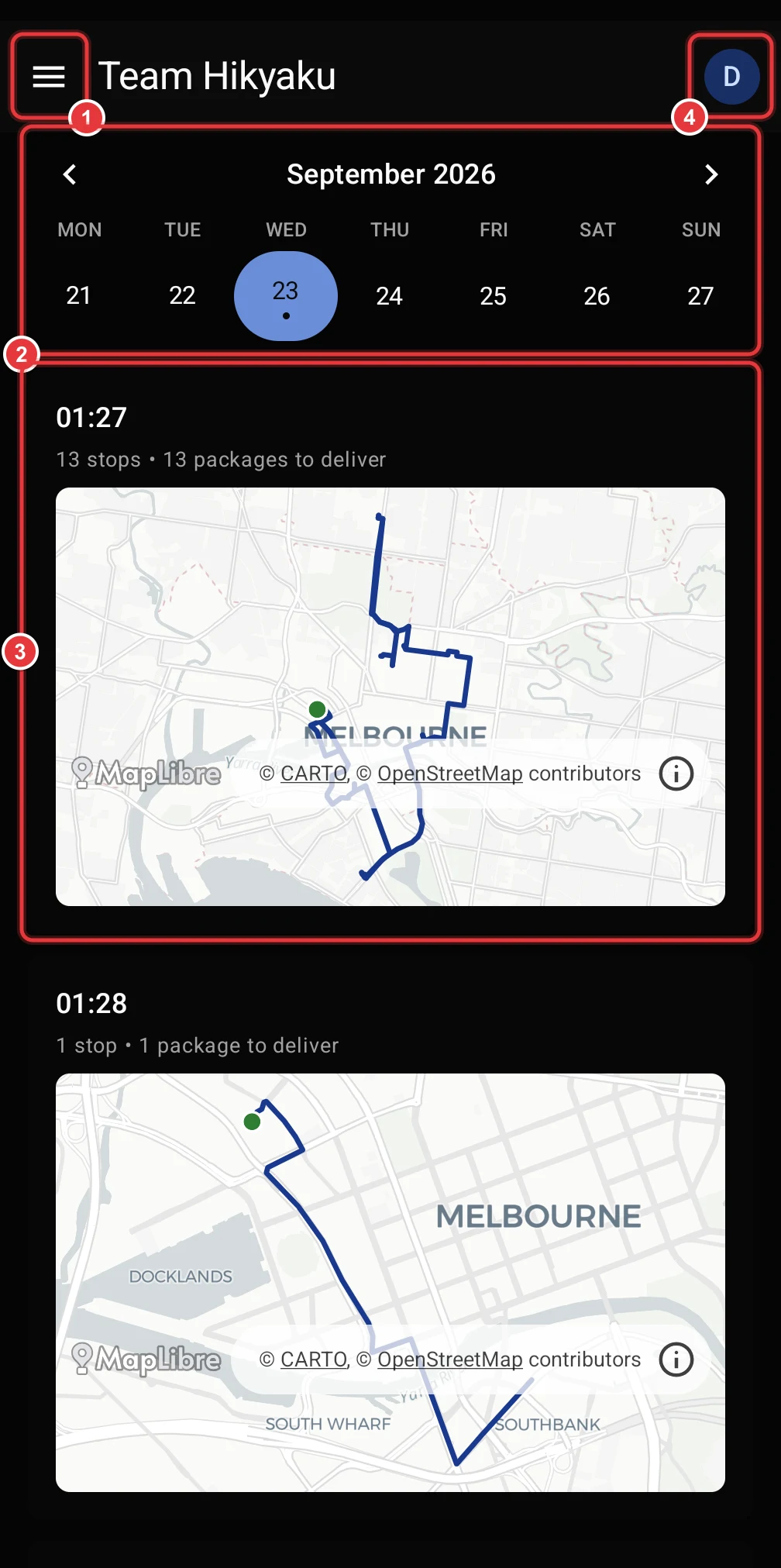
- Menu. Tap it to open the navigation menu.
- Week calendar. Tap a day to see the shifts of that day. Tap the arrows to go to the previous week or the next week. A dot below a day shows that the day has shifts.
- Shift card. Each card shows the start time, the number of stops, the number of packages and a preview of the route. Tap the card to open the shift.
- Account. Tap it to change your name or photo, change the organisation, or sign out.
Swipe down on the list to load the shifts again. To delete a shift, swipe the card to the side. You can tap Undo to keep it. You cannot delete a shift that has delivered packages.
Go to a different part of the app
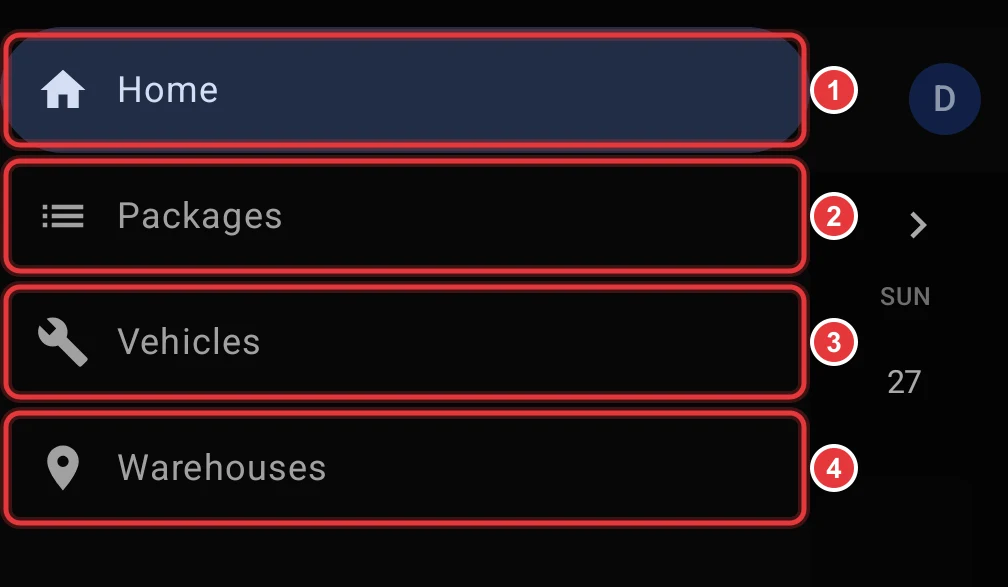
- Home: the shifts of the week.
- Packages: all packages of the organisation. Refer to Packages.
- Vehicles: the vehicles and their maintenance history. Refer to Vehicles and Warehouses.
- Warehouses: the depots where shifts start and end. Refer to Vehicles and Warehouses.
Your account and organisations
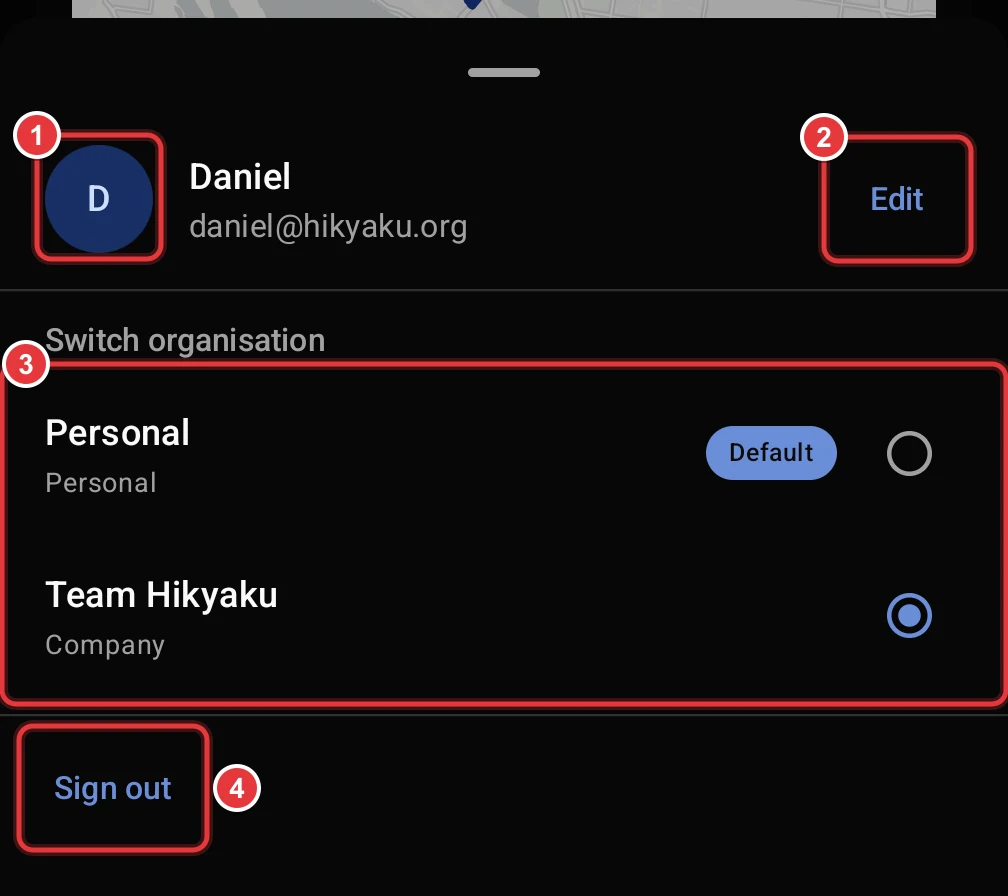
- Tap the photo to take a new profile photo or to select one from the gallery.
- Tap Edit to change your display name.
- Tap an organisation to change to it. All screens then show the data of that organisation. Default shows the organisation that opens first.
- Tap Sign out to sign out of the app.
Features
| Feature | What you can do | Page |
|---|---|---|
| Sign in | Sign in with email or Google. Make an account. Connect to a self-hosted Hikyaku. Accept team invitations. | Sign In and Accounts |
| Shifts | See the route on a map, with fuel stations. Change the start time. Add or remove stops before the shift starts. | Shifts and Routes |
| Load and deliver | Scan each package into the van. Start the shift. Navigate, call the receiver and share a tracking link. Record a photo and a signature as proof of delivery. | Run a Shift |
| Packages | Add a package in four steps. See the QR code, print the label and see the status history. | Packages |
| Vehicles | Add a vehicle. Scan the VIN to fill in the make, model and year. Record maintenance. | Vehicles and Warehouses |
| Warehouses | Add a depot from an address search or a map. | Vehicles and Warehouses |
How the app works with the dashboard
- The dispatcher, or instant assignment, puts packages on a driver's shift.
- The driver opens the shift in the app and scans each package into the van.
- The driver starts the shift. The app sends the location of the driver while the shift is active.
- At each stop, the driver records the proof of delivery and marks the package Delivered.
- The dashboard and the tracking page show each change immediately.
Package status in the app
| Status | What it means |
|---|---|
| Pending | The package is in the system. It is not on a shift. |
| Assigned | The package is on a shift. It is not in the van. |
| Onboard for Delivery | The driver scanned the package into the van. |
| In Transit | The driver is on the way to this stop. |
| Delivered | The driver delivered the package. |