Packages
A package is one item that a driver collects from a warehouse and delivers to a receiver. When you add a package, Hikyaku puts it on a driver's shift immediately.
Who can use this page: team members with packages.view. To add a package, you must have packages.add. Refer to Access Control.
See all packages
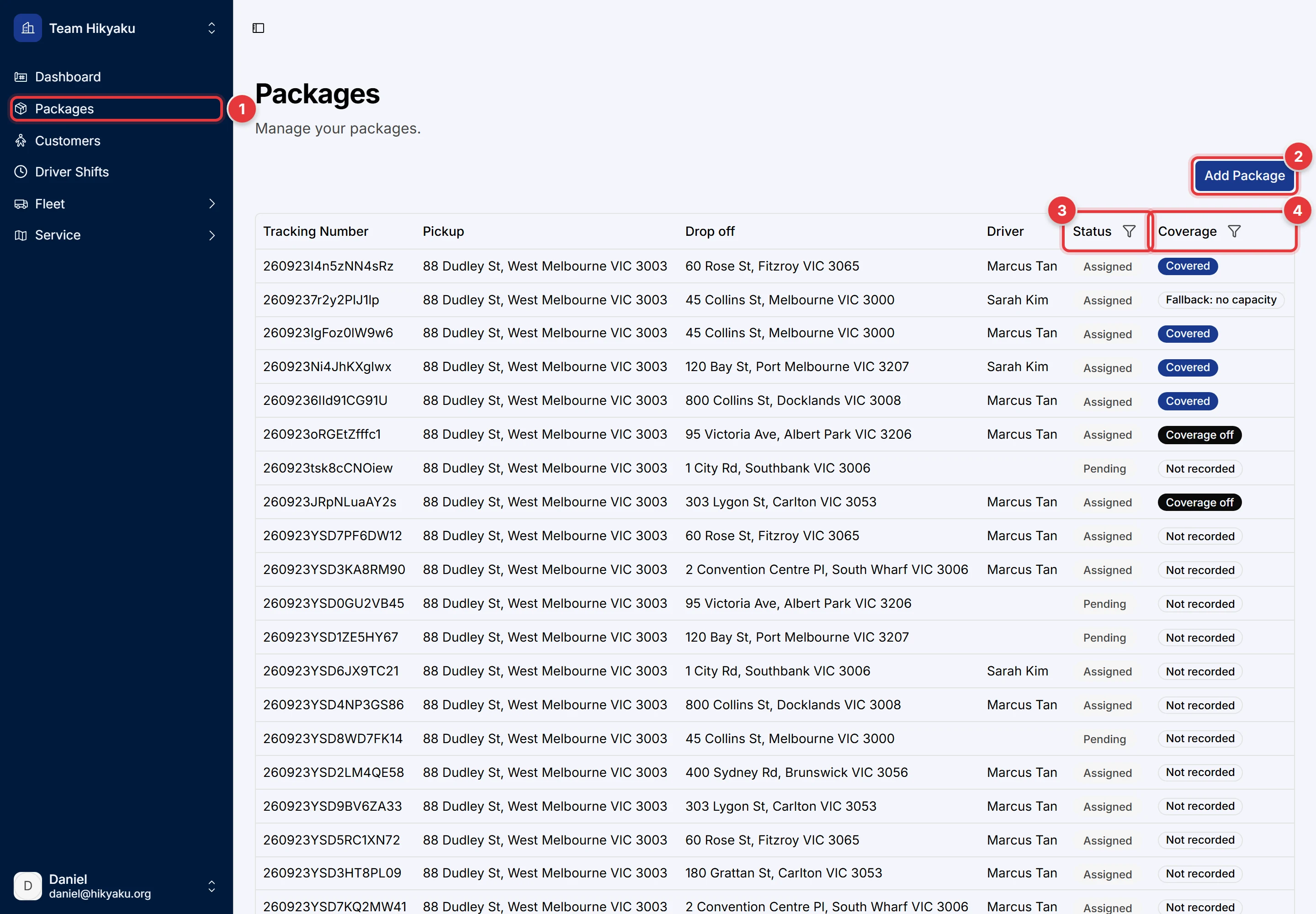
- In the sidebar, click Packages.
- Click Add Package to take in a new package.
- Click the filter icon in the Status column to show only some statuses.
- Click the filter icon in the Coverage column to show only some coverage results. For example, show only the fallbacks.
Click a row to open the package page.
Package status
| Status | Meaning |
|---|---|
| Pending | The package is at the warehouse. It is not on a shift. |
| Assigned | The package is on a driver's shift. |
| In Transit | The driver collected the package and is on the route. |
| Delivered | The driver delivered the package and recorded proof of delivery. |
| Failed | The driver could not deliver the package. The package page shows the reason. |
Add a package
Adding a package has four steps.
Step 1: Package information
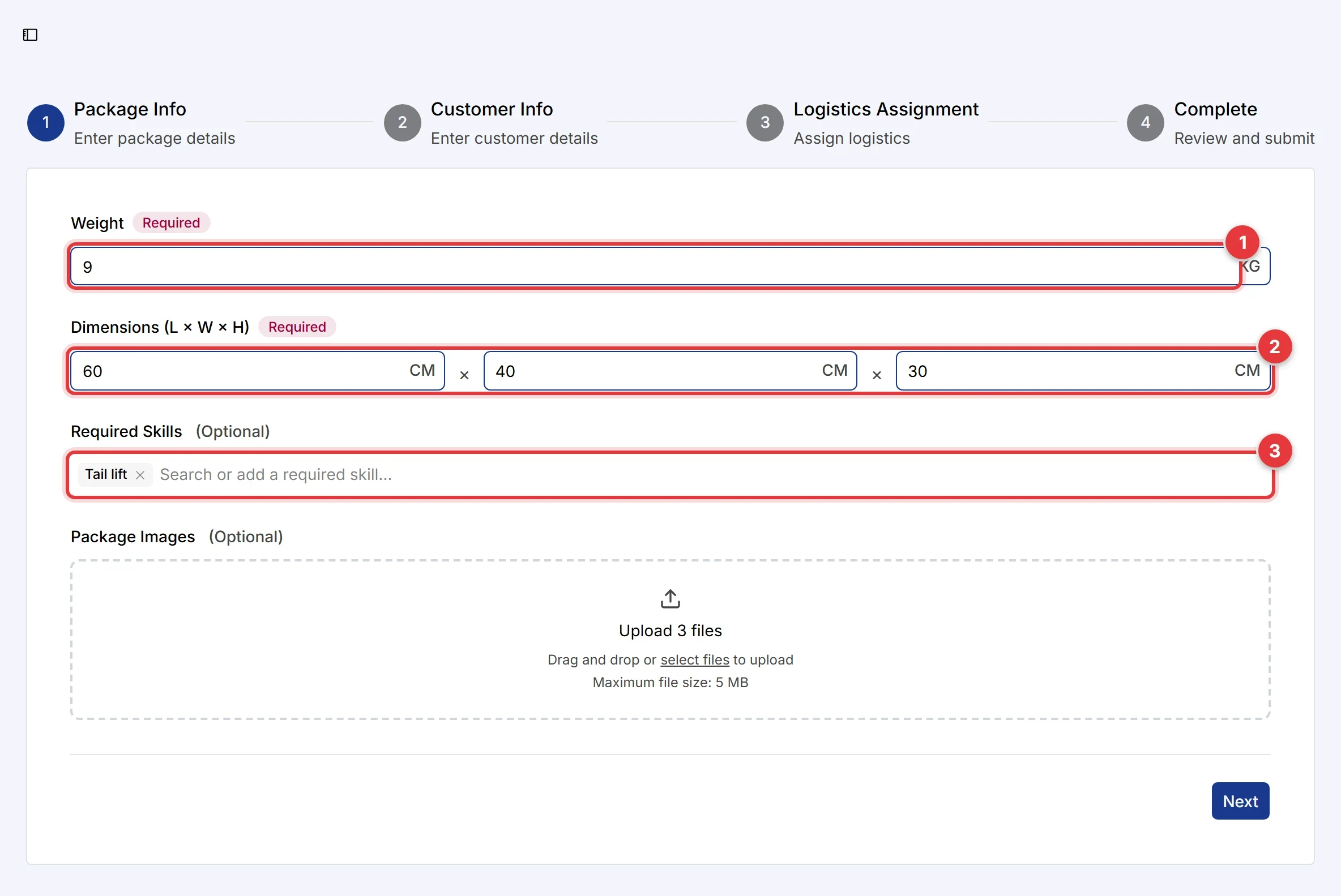
- Type the Weight in kilograms.
- Type the Dimensions (length, width and height) in centimetres.
- Optional: in Required Skills, select each skill that the vehicle must have. For example, select
Refrigeratedfor chilled goods. Refer to Vehicles and Skills. - Optional: add photos of the package.
- Click Next.
Step 2: Sender and receiver
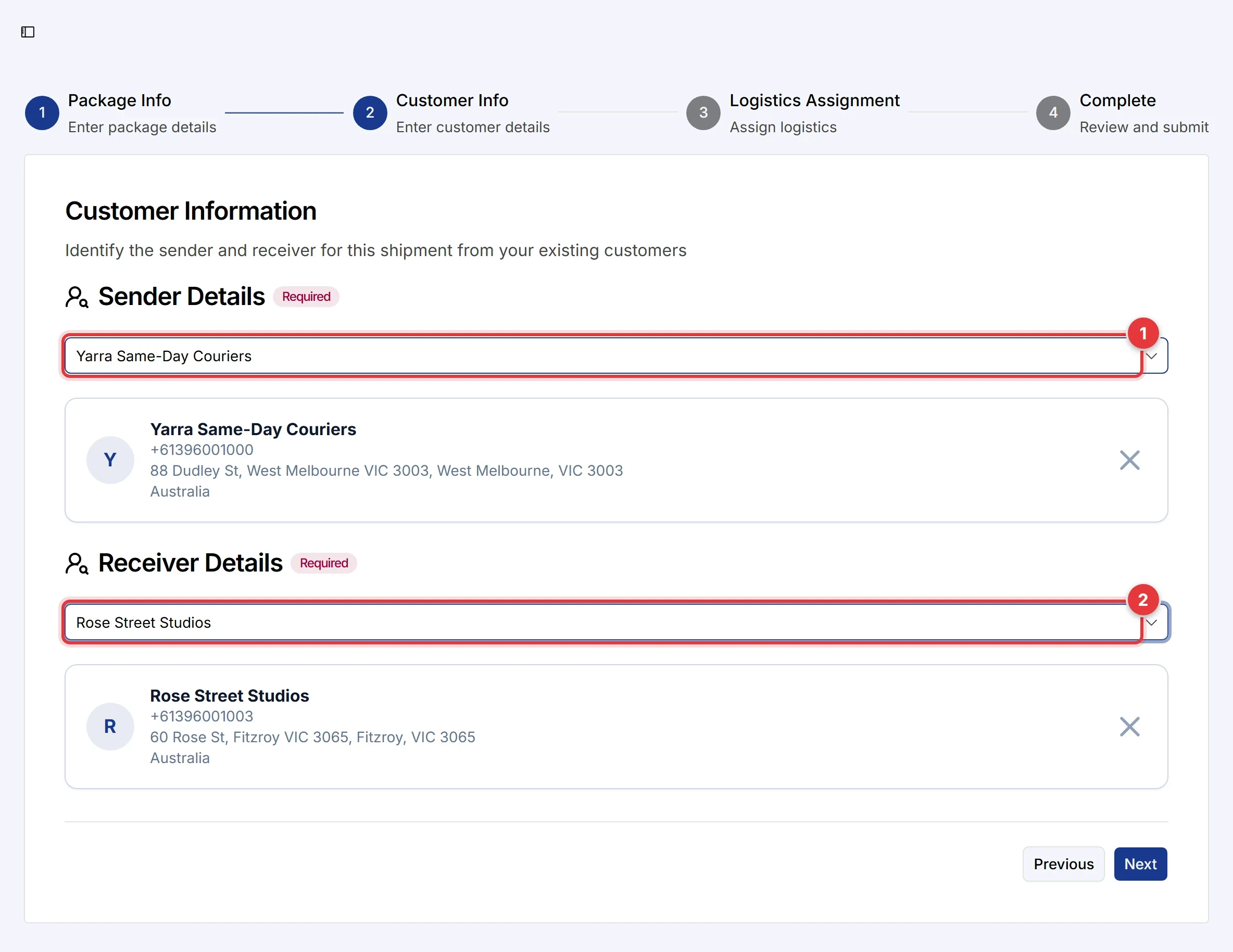
- In Sender Details, type the name or phone number of the sender and select the customer.
- In Receiver Details, select the receiver in the same way.
- Click Next.
To add a customer that does not exist yet, click + Create New Customer. Refer to Customers.
Step 3: Logistics
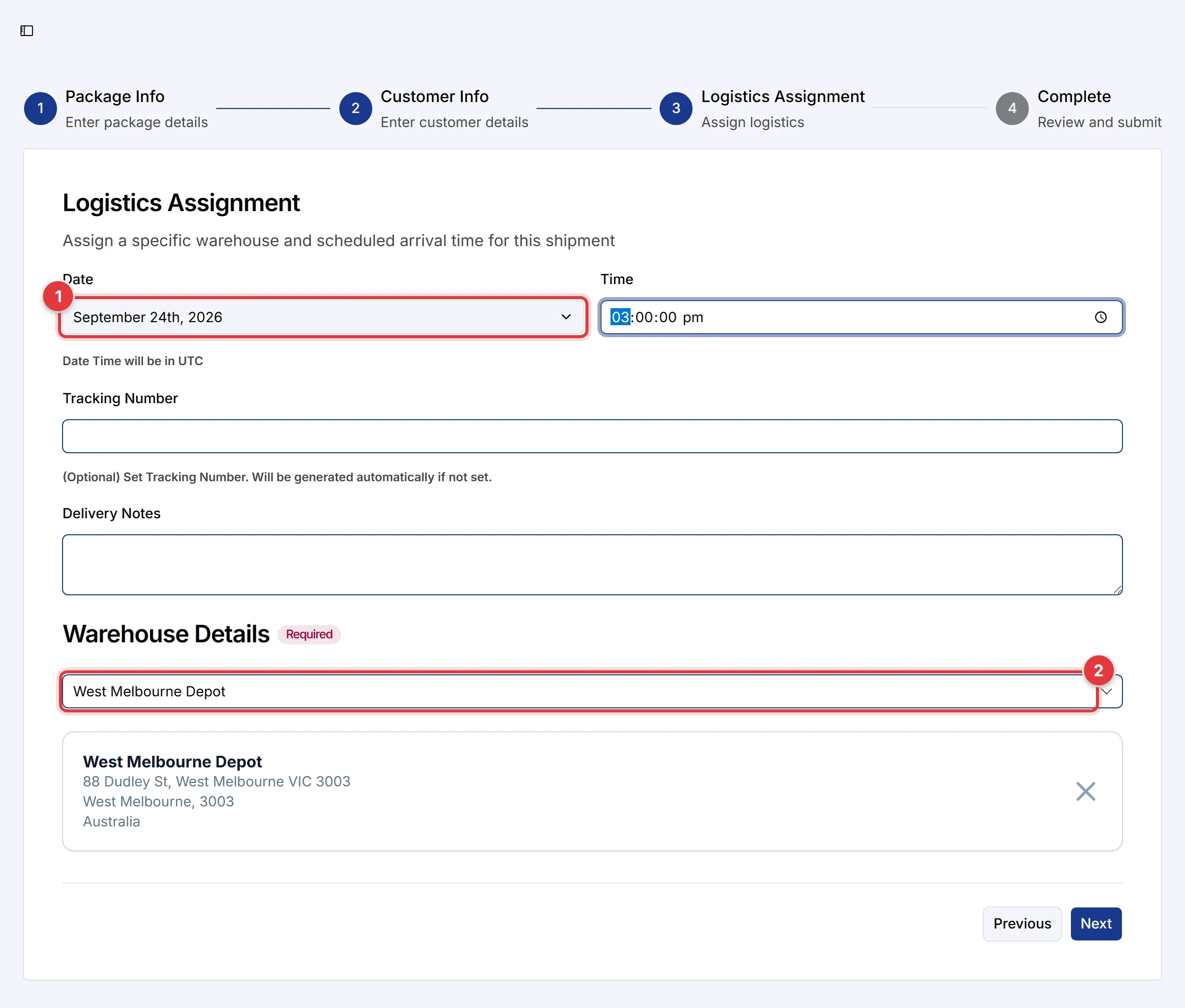
- Select the Date and Time by which the receiver must get the package. The planner uses this time as the delivery deadline.
- In Warehouse Details, select the warehouse where the package starts.
- Optional: type a Tracking Number. If you leave it empty, Hikyaku makes one.
- Optional: type Delivery Notes for the driver, for example "Leave with reception".
- Click Next.
Step 4: Review and submit
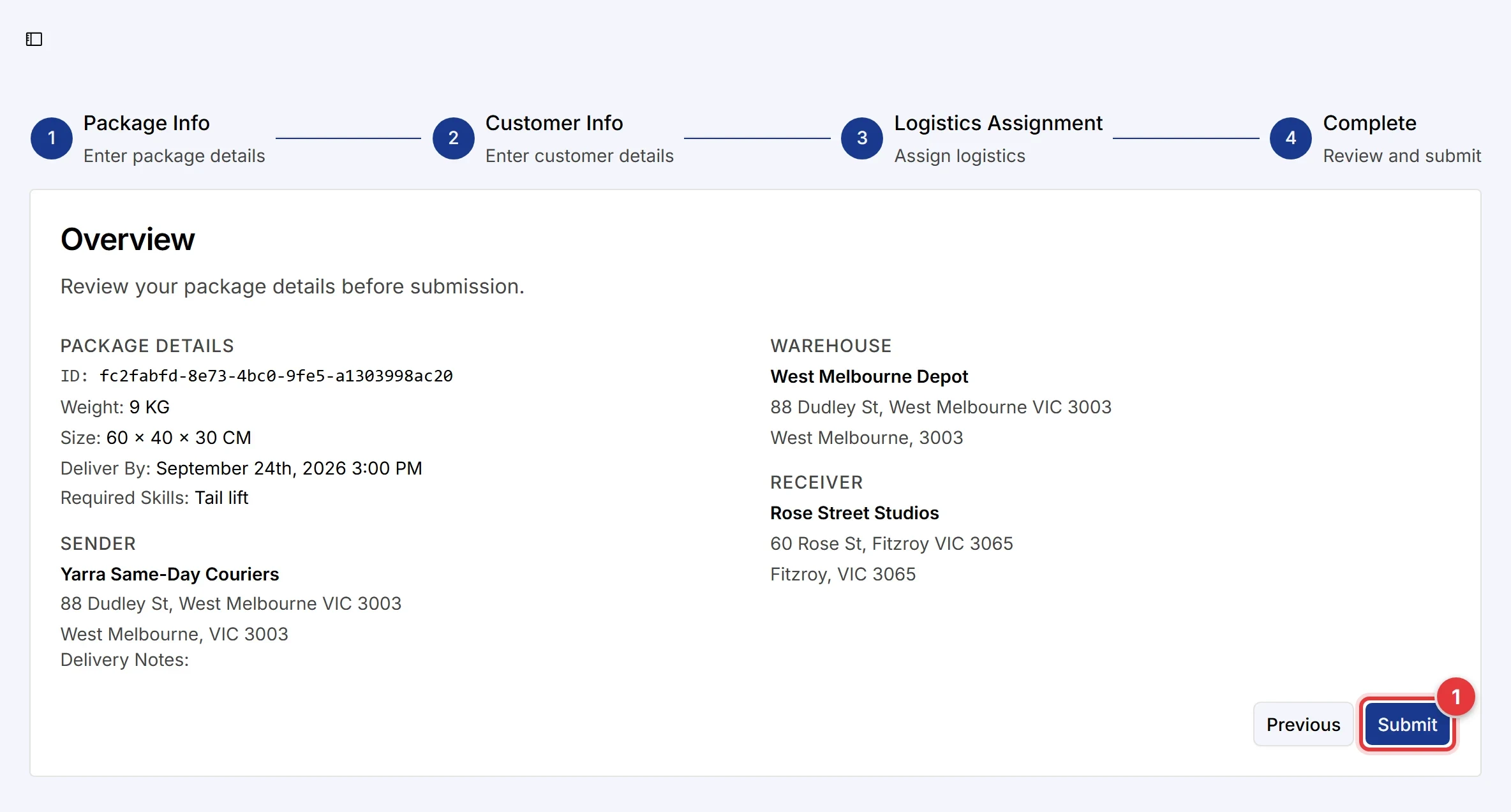
- Make sure that the details are correct.
- Click Submit.
The result
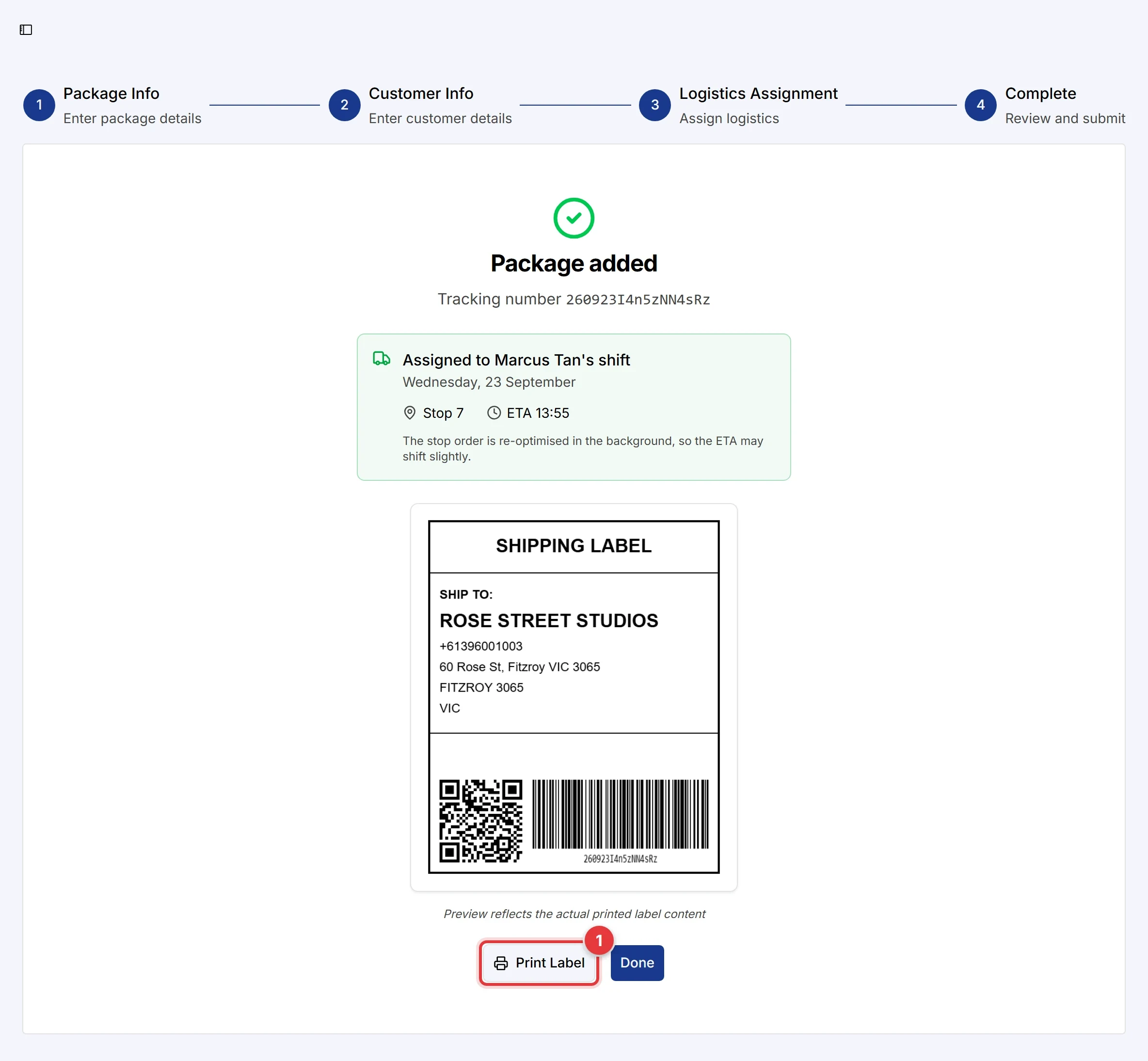
Hikyaku tells you the result immediately:
- Assigned to a driver's shift. The screen shows the driver, the date, the stop number and the estimated time of arrival (ETA).
- A new shift was opened. No open shift could take the package, so Hikyaku started a new shift for a free driver.
- Queued — not on a shift yet. No driver and van could take the package now. The package joins a shift automatically when one has space. A dispatcher can also add it to a shift manually.
Click Print Label to print the shipping label. The label has a QR code for tracking. If you set a company logo in Settings, the logo is at the centre of the QR code.
The ETA can change a little after this screen. Hikyaku solves the full route again in the background.
Open a package
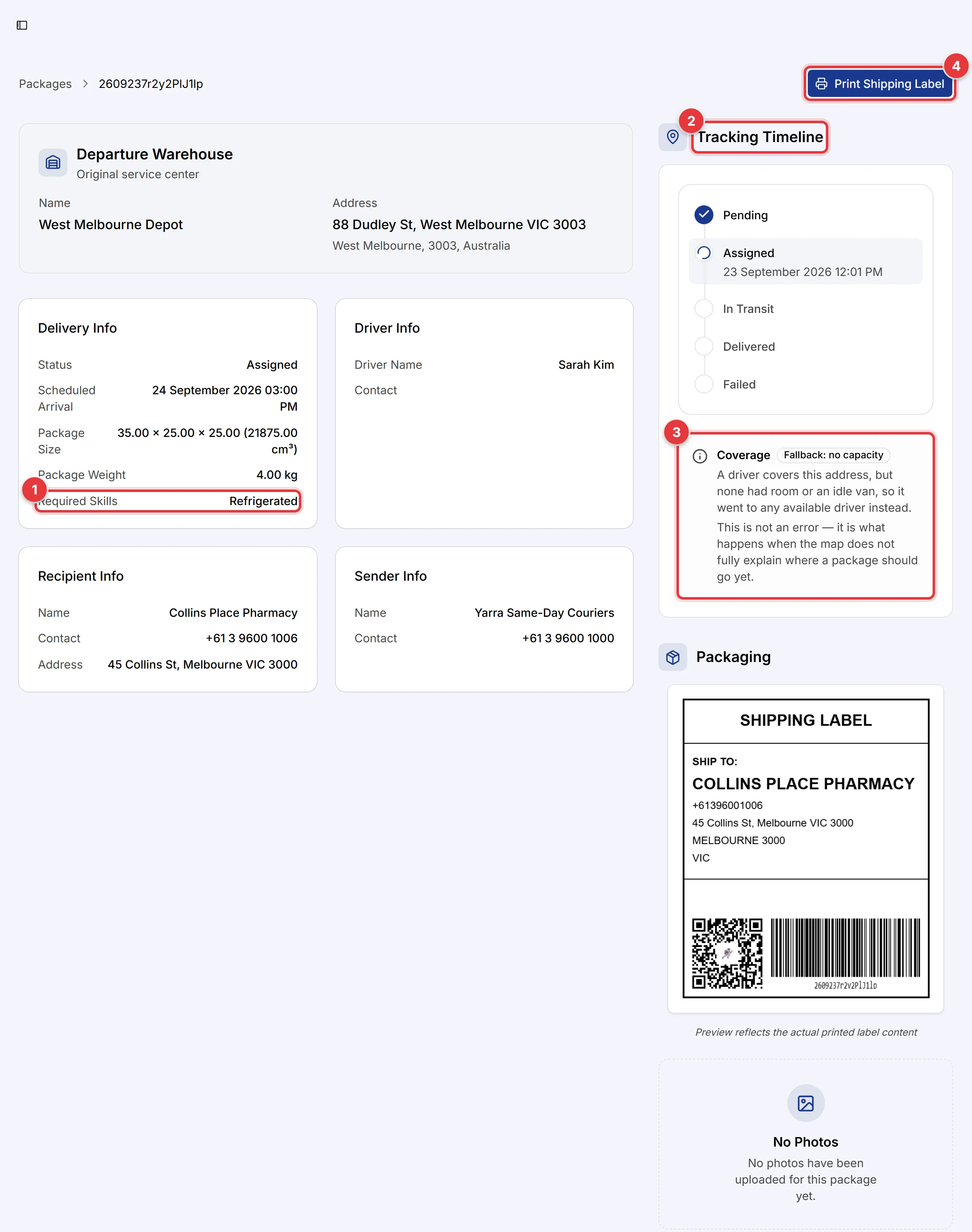
The package page shows all the data about one package:
- Delivery Info: the status, the deadline, the size, the weight and the Required Skills.
- Tracking Timeline: each status change, with the date and time.
- Coverage: the reason that Hikyaku put the package on this driver's shift. Refer to the table below.
- Print Shipping Label: print the label again.
The page also shows the departure warehouse, the driver, the receiver and the sender. Package Photos shows the photos that were uploaded for the package.
Coverage and skill problems
The Coverage value tells you why a package went to its driver. Hikyaku records it at the time of assignment.
| Coverage | Meaning |
|---|---|
| Covered | The driver's service area contains the delivery address. |
| Floater match | The driver has no service areas. Hikyaku can give a floater work anywhere. |
| Fallback: no capacity | A driver covers the address, but no covering driver had space or a free van. The package went to a different driver. |
| Fallback: no coverage | No driver covers the address. The package went to any free driver. Draw a service area here, or attach a driver to it. |
| Coverage off | Coverage matching was off when Hikyaku assigned the package. |
| Not recorded | A dispatcher placed the package manually, or a replan moved it. |
A fallback is not an error. It tells you that your service areas do not fully explain where the package must go.
Unassigned: skill mismatch. If no vehicle at the warehouse has all the skills that a package requires, the package stays Pending. The package page names the missing skills. To correct this, give the skill to a vehicle at that warehouse, or add a vehicle that has it.