Driving Limits
A driving limit profile is a named set of limits for one shift. For example, the profile "Probationary" can limit a new driver to 8 hours of work, 150 km and 25 stops. The planner does not put a package on a shift if the package makes the shift go above a limit of the driver.
Each profile has four limits. Each limit is optional.
| Limit | What Hikyaku measures |
|---|---|
| Working time | The time from the depot back to the depot, including 15 minutes at each stop. |
| Driving time | The time on the road only. The time at stops does not count. |
| Distance | The planned length of the full route, from the depot back to the depot. |
| Stops | The number of deliveries on one shift. The maximum is 45. |
An empty field means no limit. An empty field is not zero.
Who can use this page: to add or change a profile, you must have drivers.update. Refer to Access Control.
Which limits apply to a driver
Hikyaku uses the first item in this list that exists:
- The profile on the driver's own page.
- The organisation default profile in Settings.
- No limits.
A new organisation has no profiles and no default. Hikyaku plans these shifts exactly as it did before driving limits existed. A change to a limit does not change the shifts that Hikyaku already planned. The change applies the next time Hikyaku plans each shift.
See the profiles
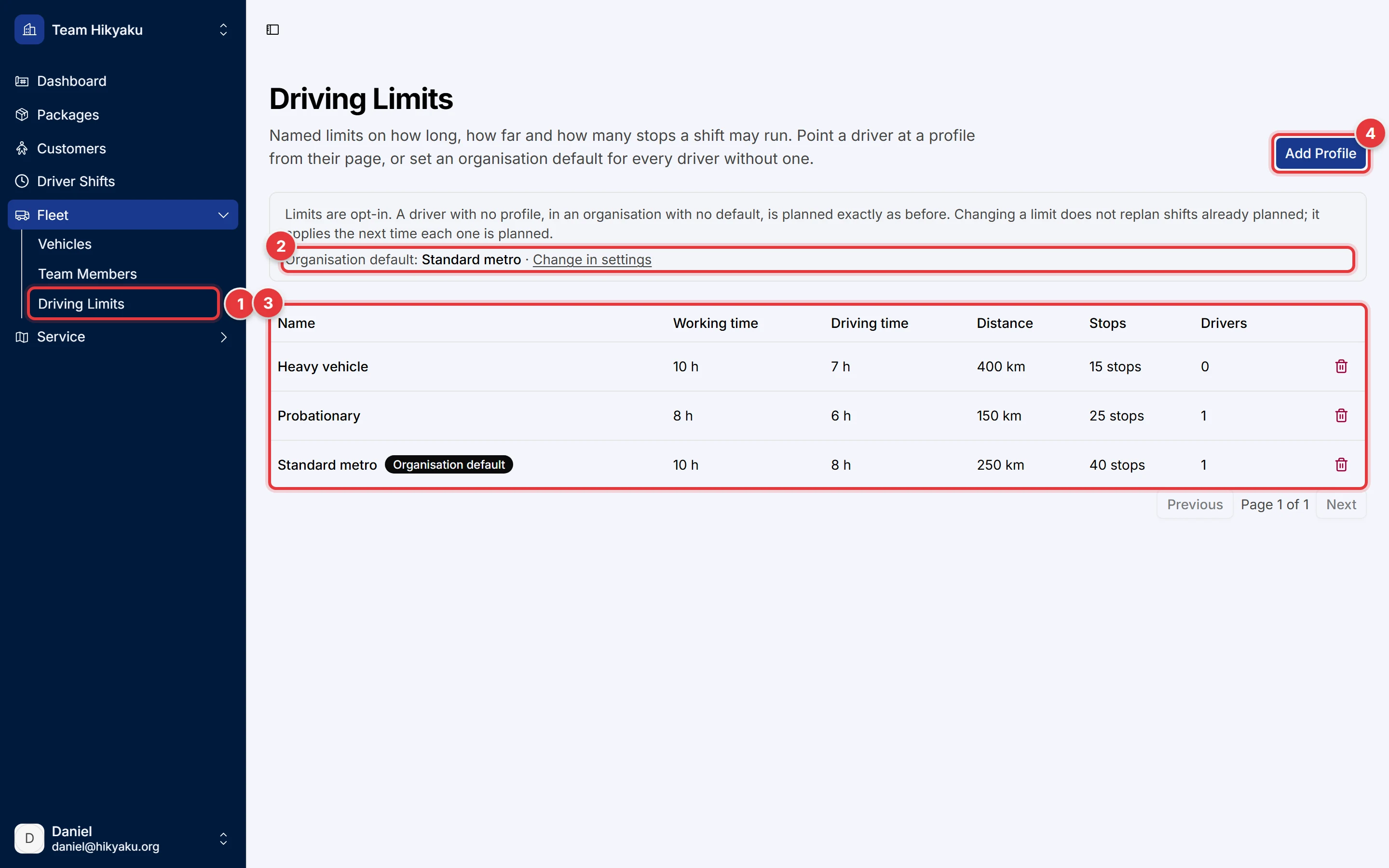
- In the sidebar, click Fleet, then click Driving Limits.
- Read the Organisation default line. Click Change in settings to select a different default.
- The table shows each profile, its four limits and the number of Drivers who use it.
Add a profile
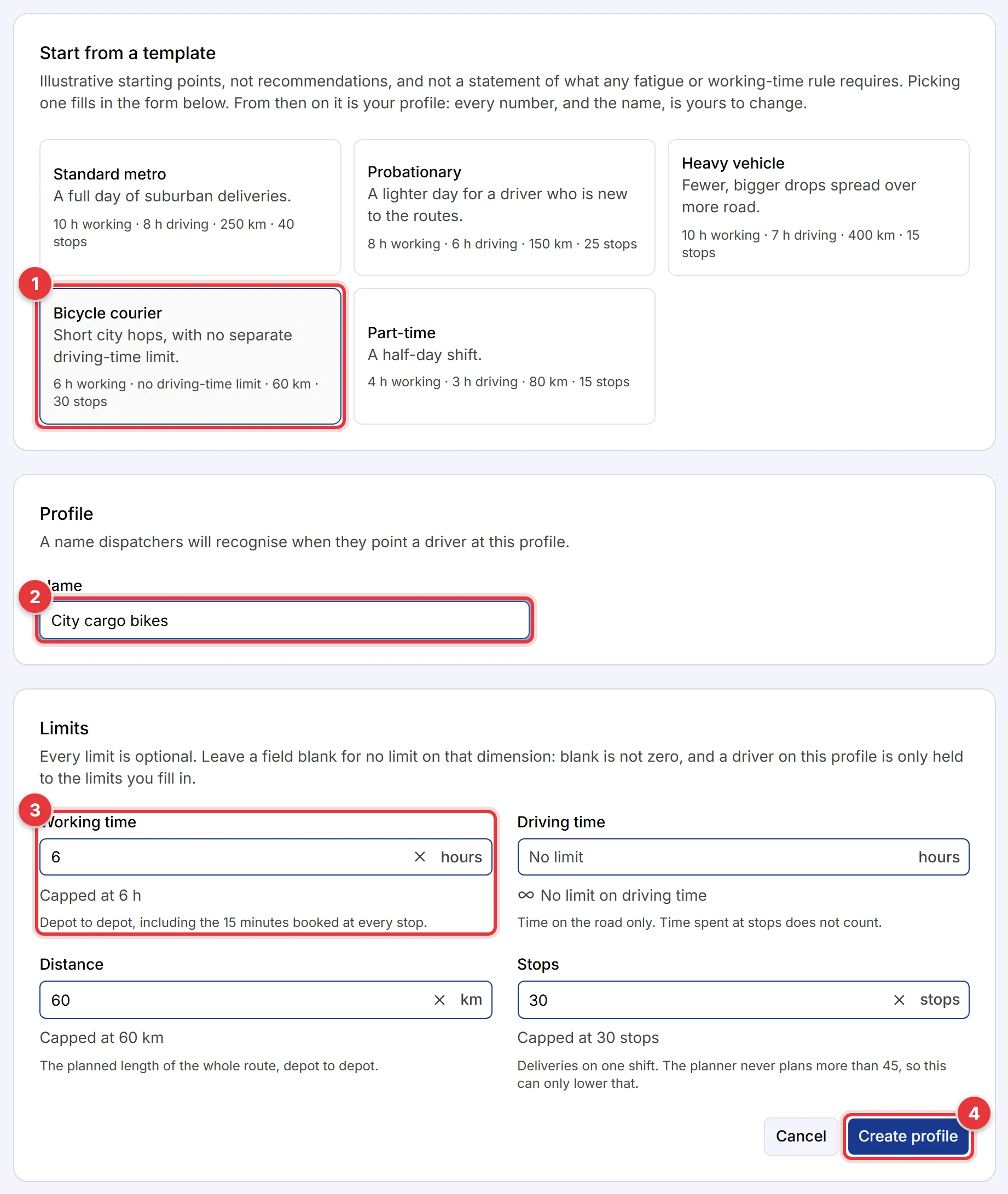
- Optional: click a template in Start from a template. The template fills in the form.
- In Name, type a name that dispatchers know, for example "City cargo bikes".
- Type the limits that you want. Leave a field empty for no limit on it. Click the × in a field to clear it.
- Click Create profile.
The templates are examples only. They are not recommendations. They do not tell you what a fatigue law or a working-time law requires. You must set limits that obey the rules in your area.
Give a profile to a driver
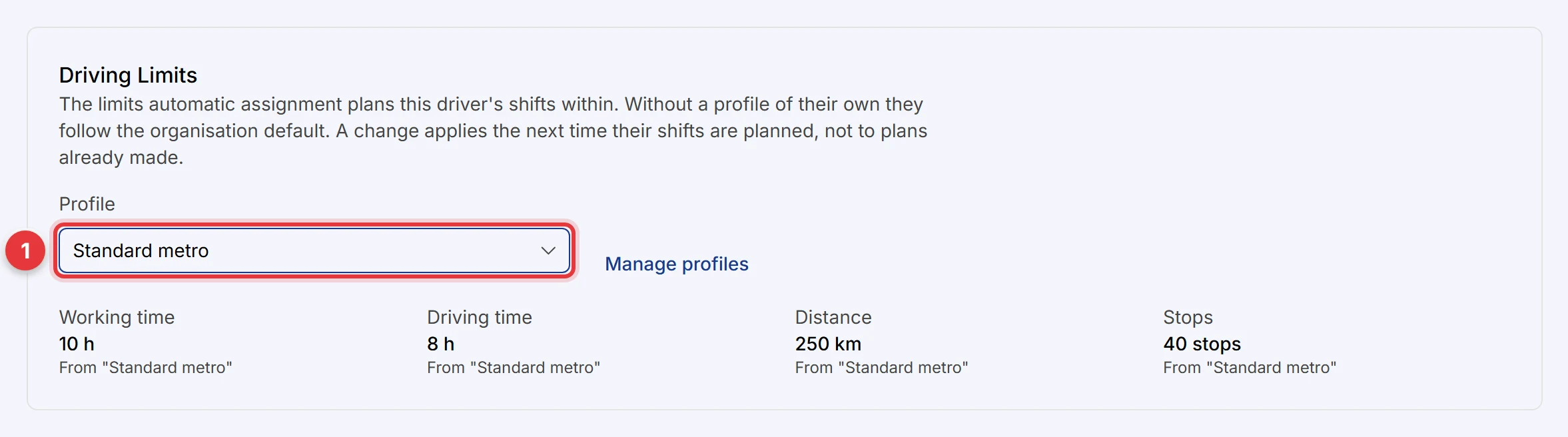
- Open the driver's page. Refer to Team Members and Drivers.
- In the Driving Limits card, select a profile.
- Save the change.
To use the organisation default for this driver, select the organisation default option. Manage profiles opens the list of profiles.
Set the organisation default
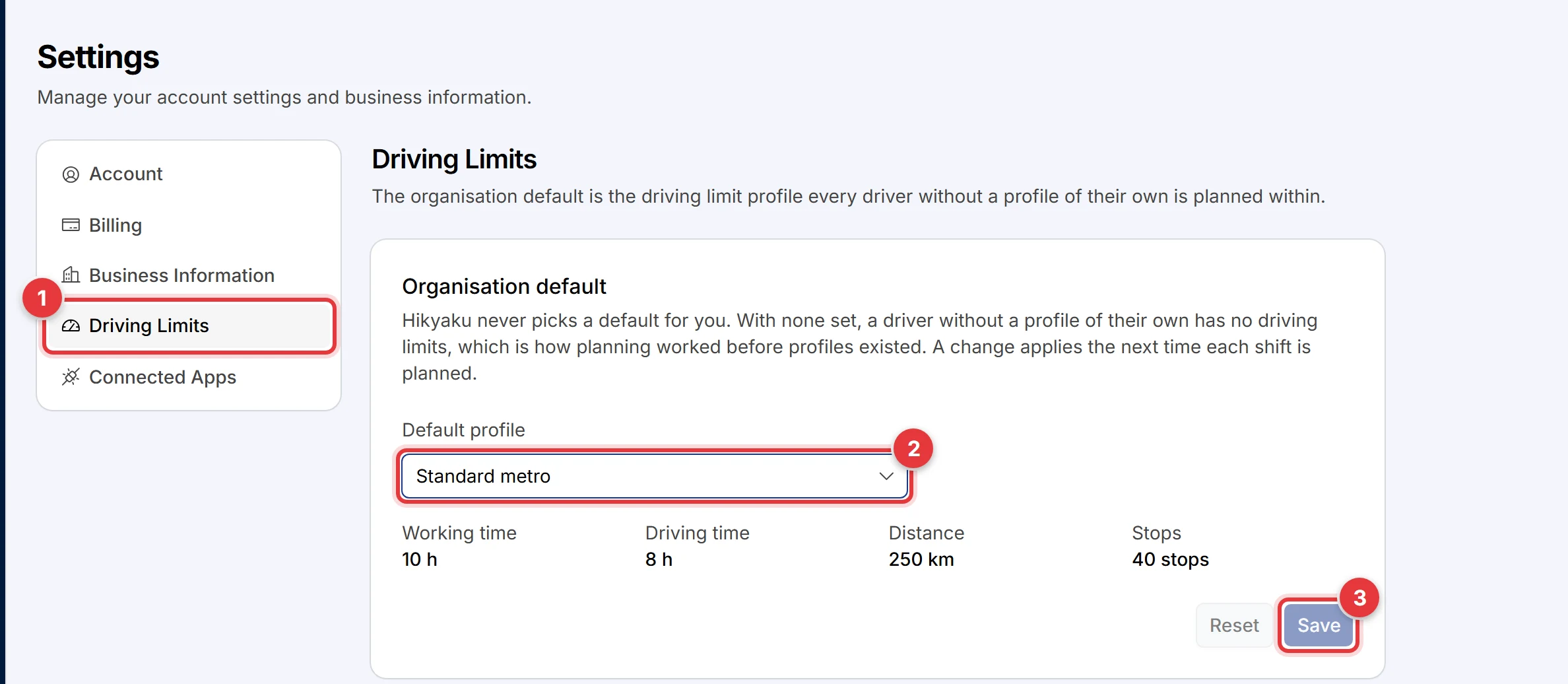
- Open Settings, then click the Driving Limits tab.
- In Default profile, select a profile.
- Click Save.
See a shift against its limits
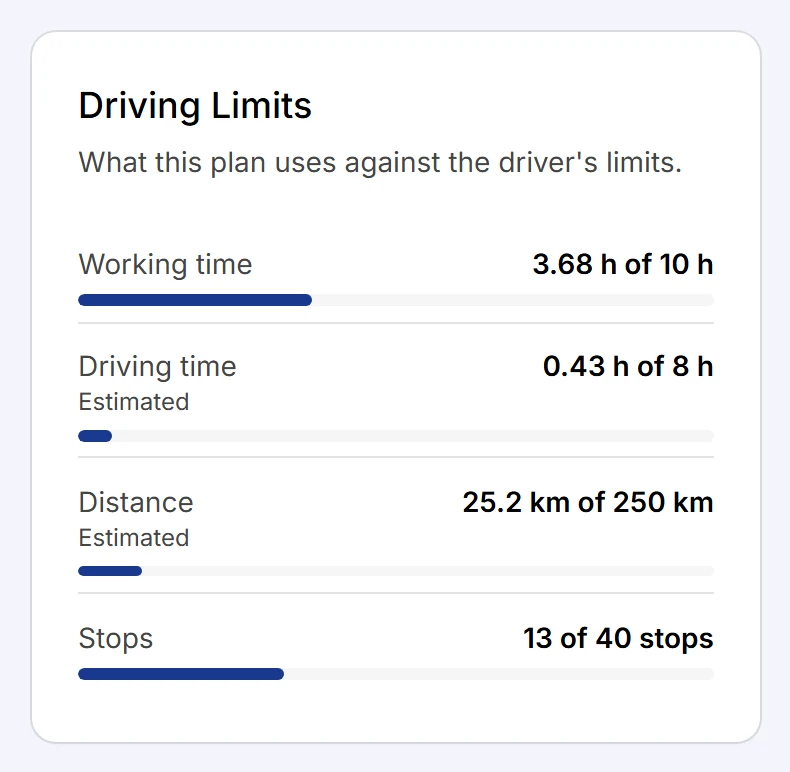
The shift page has a Driving Limits card. The card shows the planned working time, driving time, distance and stops against the limits of the driver.
| Label | Meaning |
|---|---|
| No label | The plan is less than 90% of the limit. |
| Near limit | The plan is 90% of the limit or more. |
| Over limit | The plan is more than the limit. For example, a dispatcher added stops manually. |
| Estimated | Hikyaku calculated this value from other values. It did not measure it on the road network. |
The weekly calendar on the Driver Shifts page also marks each shift that is near or over a limit. Put the pointer on the shift to see which limit.
Hikyaku always shows the limits. The planner uses them only when the API option DRIVING_LIMITS is on. When the option is off, the shift card shows the text "Automatic assignment is not applying driving limits yet".